How to create an alert rule #
In this guide, we will create a new alert rule to create an alert when a condition is met.
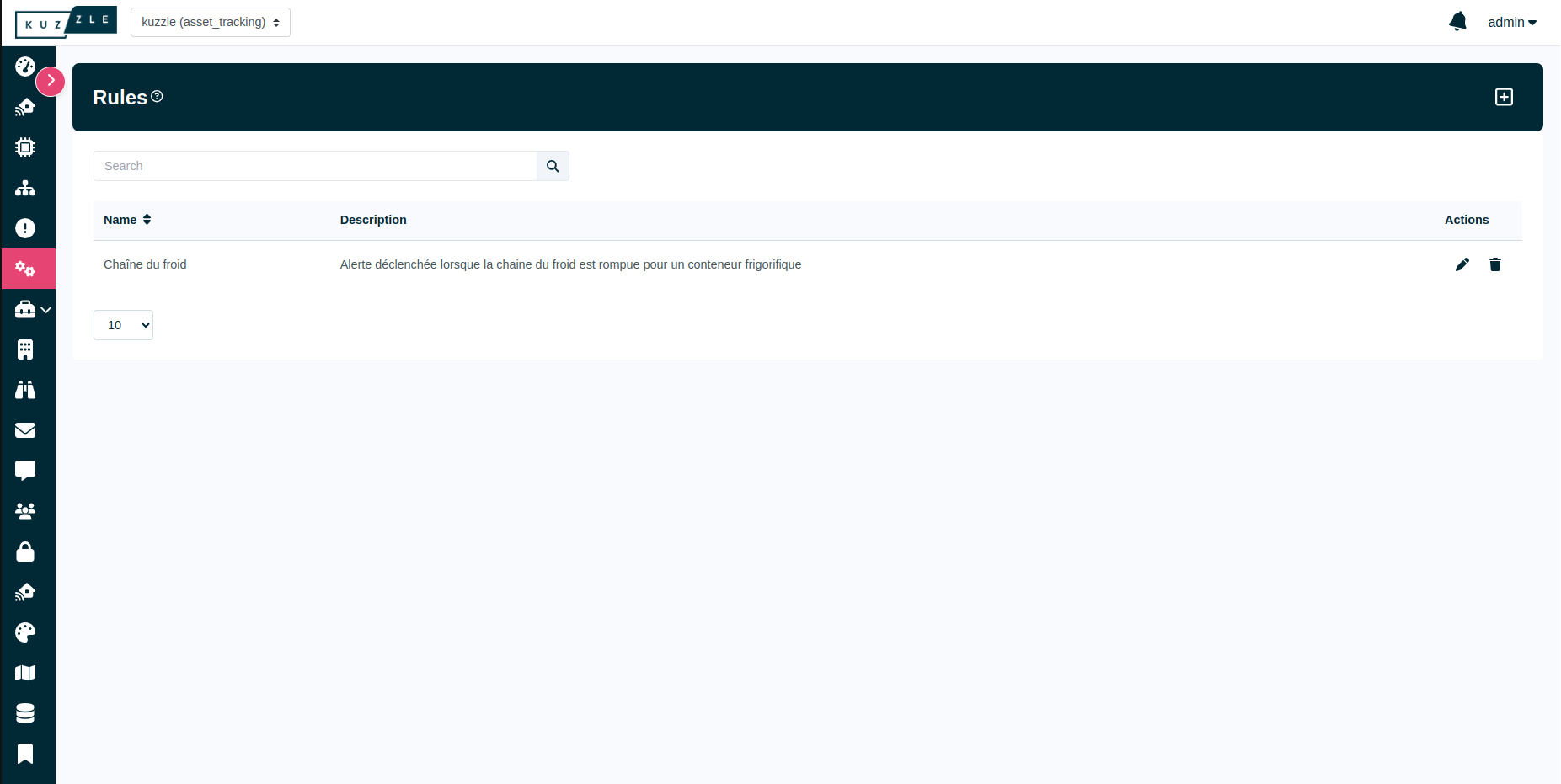
Step 1: Navigate to the Rules Page #
Screenshot
Step 2: Create a New Alert Rule #
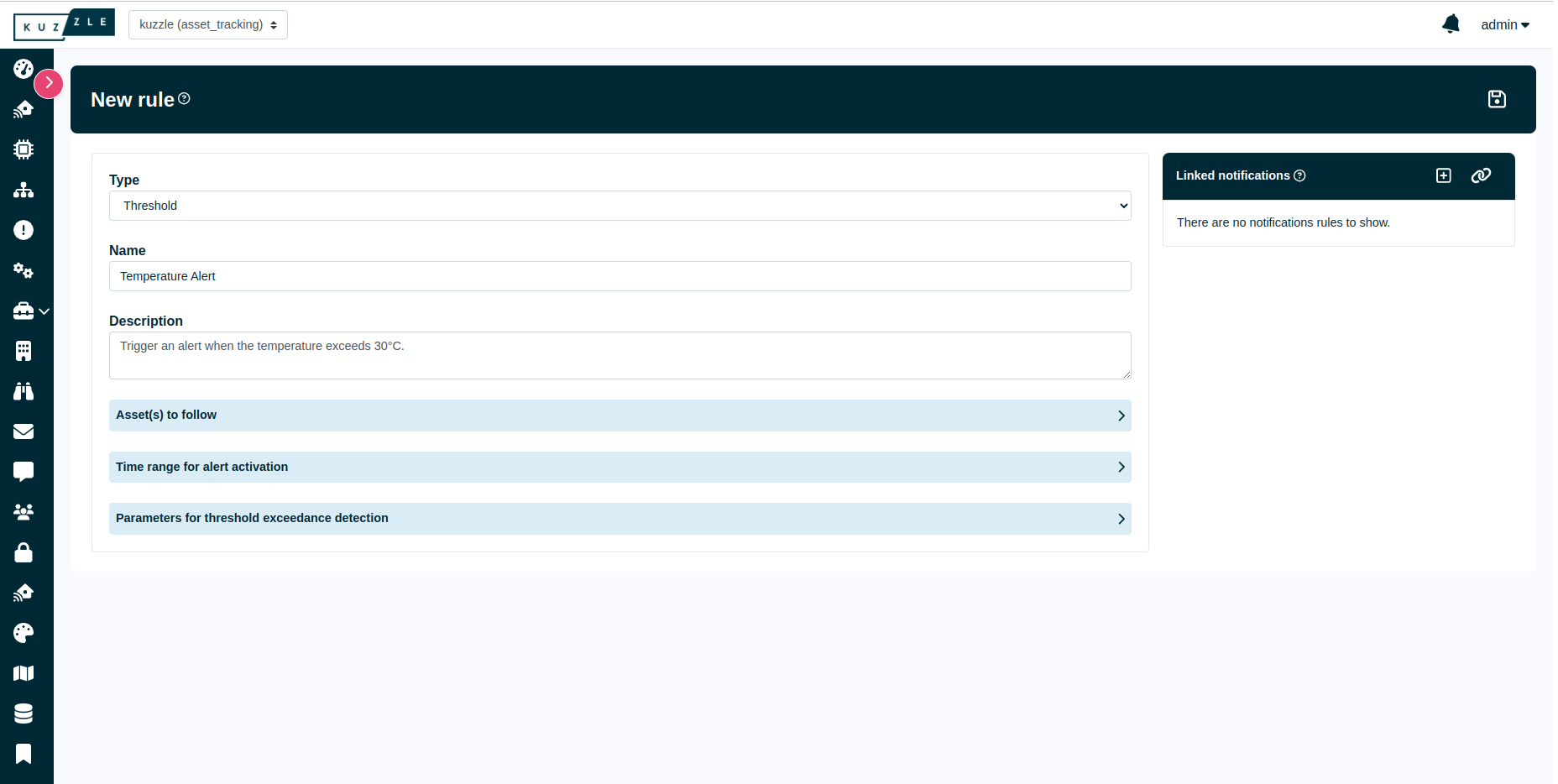
- Click on the
+button on the top right corner. - Fill in the alert rule details:
- Type: Select the type of alert rule (e.g., "Threshold" or "Geofencing").
- Name: Enter a descriptive name for the alert rule.
- Description: Provide a clear description explaining the purpose of the alert rule.
- Collection: (If present) Choose the collection containing the data to monitor (e.g., "measures").
- Asset(s) to follow: Configure filters to specify which assets to monitor and under what conditions.
- Time range for alert activation: (Optional) Define when the alert rule should be active using planning settings.
- Depending on the selected type:
- Threshold: Configure numeric value conditions to detect threshold exceedances.
- Geofencing: Configure zone-based triggers to detect movement in or out of defined geozones.
Screenshot
Step 3: Configure the Alert Rule Parameters #
A. Threshold Rule #
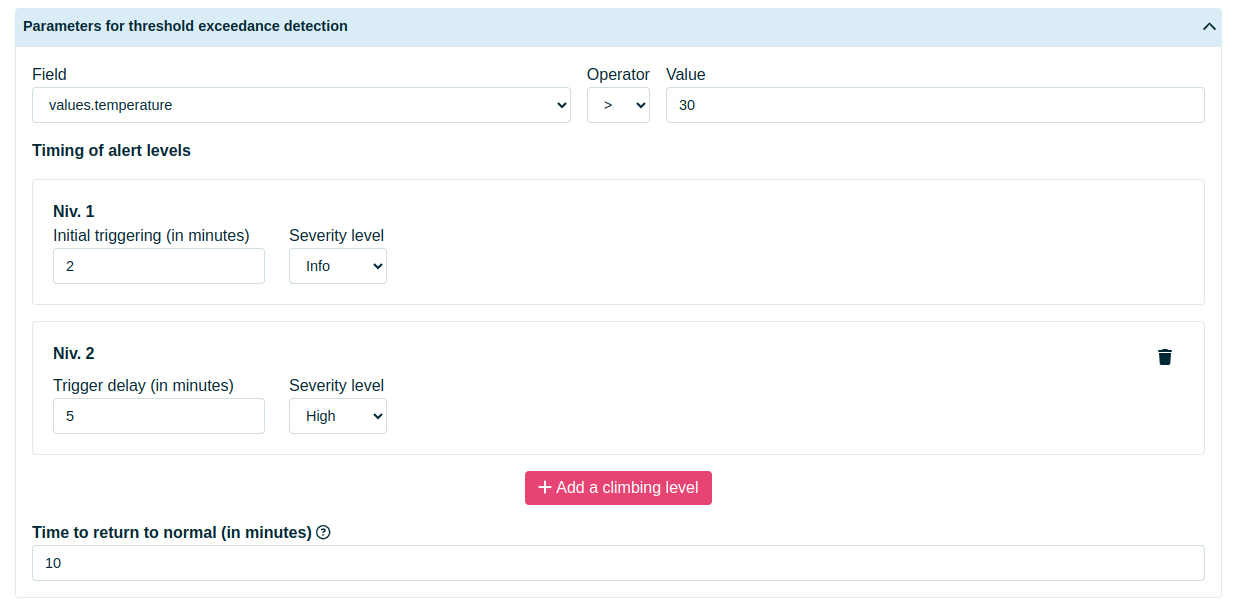
For threshold-based rules, specify the monitoring conditions:
Field to monitor: The document field containing the numeric value (e.g.,
values.temperature).Comparison operator: The comparison to apply (
>,<,=, etc.).Threshold value: The value beyond which the alert should trigger.
Debounce settings: Define how many consecutive matches are needed before the alert triggers or clears.
Alert severity levels and timing: Configure multiple levels with delays and severities.
Screenshot
B. Geofencing Rule #
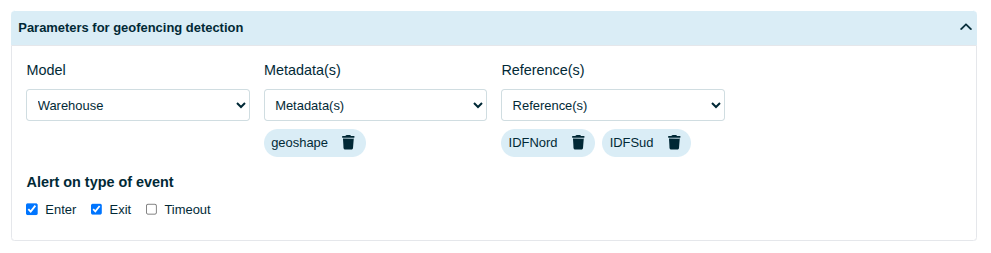
For geofencing rules, configure spatial conditions based on geozones.
Model: The asset model used to define geozones (e.g., “Zone”).
Metadata Path: Select metadata fields containing geo-shapes (e.g.,
metadata.geoshape).References: Select one or more geozone assets to monitor. If not all assets of the selected model are affected.
Actions:
Enter: Triggers when an asset enters a geozone.Exit: Triggers when an asset leaves a geozone.Timeout: Triggers when an asset stays within a geozone for too long.
Timeout Duration: (Shown only when
Timeoutis selected) Duration before triggering a timeout alert.Targeted Collections: Specify the collection(s) where resulting alert documents will be created.
Screenshot
⚠️ Caution — Add the Geofencing Event Measure to Asset Models
When creating a Geofencing alert rule, make sure the
geofencingEventmeasure model
(GeofencingEventMeasurement.ts) is added to the asset models of the “Assets to follow”
selected in the rule configuration.This ensures that when a geofence event (
enter,exit, ortimeout) occurs, the asset can
correctly record ageofencingEventmeasure along with the generated alert document.
Step 4: Link Notification Rules (Optional) #
- In the "Linked Notification Rules" section, click on the "Link Notification Rule" button.
- Select the notification rules you want to link to this alert rule.
- Click "Link" to associate the selected notification rules with the alert rule.
Step 5: Save the Alert Rule #
- Review all alert rule settings to ensure they are correctly configured.
- Click on the Save button to create and activate the alert rule.
Example 1: Temperature Monitoring Alert (Threshold) #
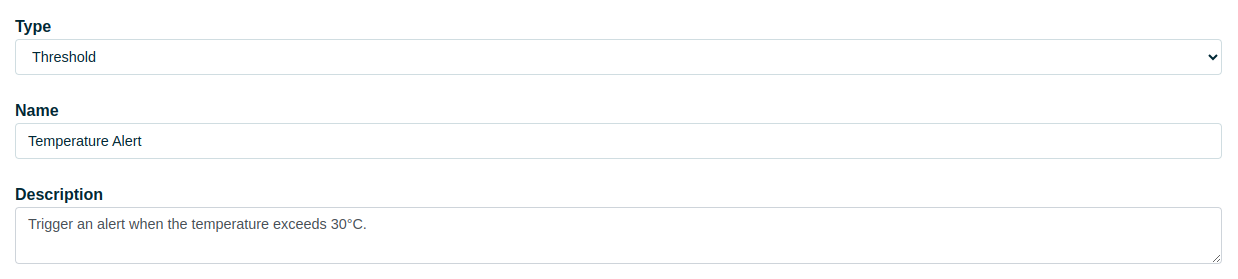
- Basic Information:
- Type: Threshold
- Name: Temperature Alert
- Description: Monitors container temperature and triggers alerts when exceeding 30°C
Screenshot
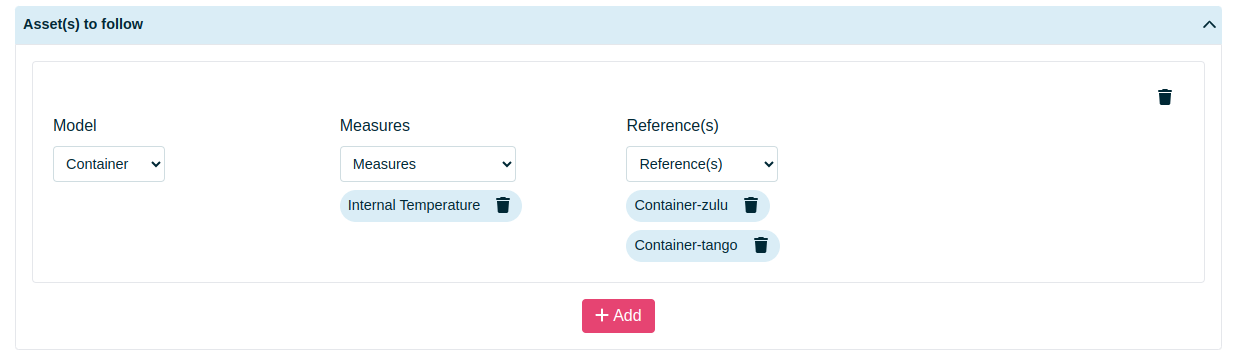
- Asset(s) to follow:
- Model: Container
- Measures: Internal Temperature
- References: Container-zulu, Container-tango (multiple references can be monitored)
Screenshot
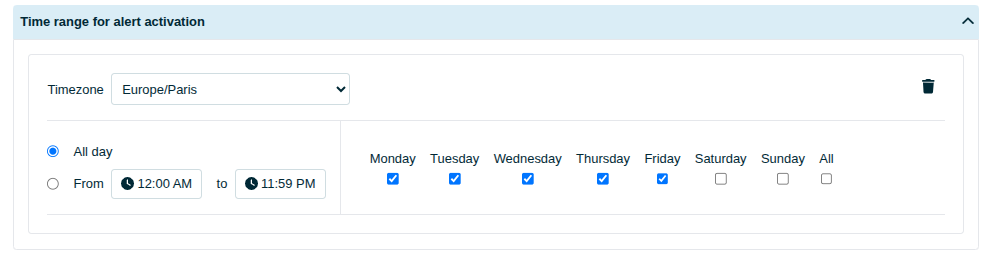
- Time range for alert activation:
- Define the timezone, the days of the week, and optionally a specific time range or date range during which the alert rule should be active.
- You can select All day or specify a start and end time.
Screenshot
- Parameters for threshold exceedance detection:
- Field: values.temperature
- Operator: >
- Value: 30
- Timing of alert levels:
- Level 1:
- Initial triggering (in minutes): 2
- Severity Level: Info
- Level 2:
- Trigger delay (in minutes): 5
- Severity Level: High
- Level 1:
- Time to return to normal (in minutes): 10
Screenshot
Example 2: Geofencing Alert (Zone Entry/Exit) #
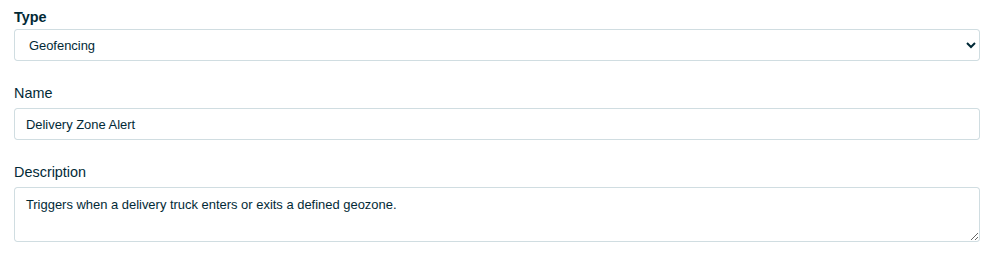
- Basic Information:
- Type: Geofencing
- Name: Delivery Zone Alert
- Description: Triggers when a delivery truck enters or exits a defined geozone.
Screenshot
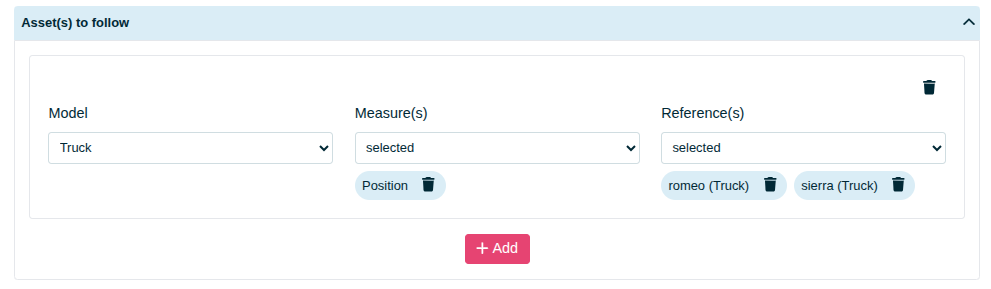
- Asset(s) to follow:
- Model: Actif
- Measures: Selected measure slots (e.g., position)
- References: All or specific assets to monitor
Screenshot
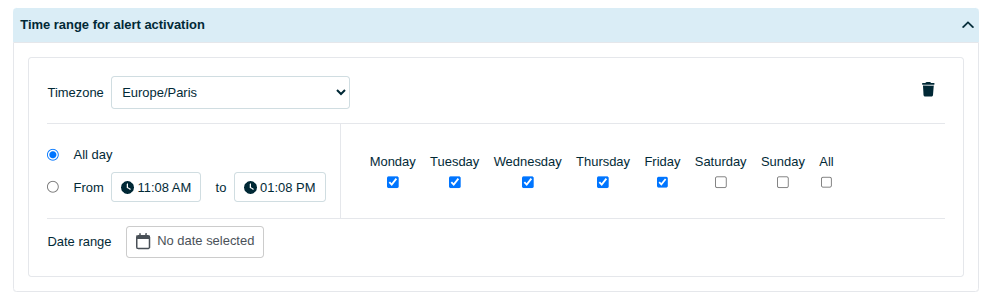
- Time range for alert activation:
- Define the active schedule for this rule (timezone, weekdays, hours).
- You can restrict activation to certain hours and days.
Screenshot
- Parameters for geofencing detection:
- Model: Warehouse
- Metadata Path:
metadata.geoshape - References: IDFNord, IDFSud
- Note: Select one or more geozone assets to monitor. If not all assets of the selected model are affected.
- Actions:
Enter,Exit, and optionallyTimeout - Timeout Duration: (optional, for “Timeout” action)
Screenshot